App: Line servicing with Manual Completion
Lines can be completed either using the Walk Line Proximity feature (GPS track) or by using a Manual Completion.
How to use the app proximity function
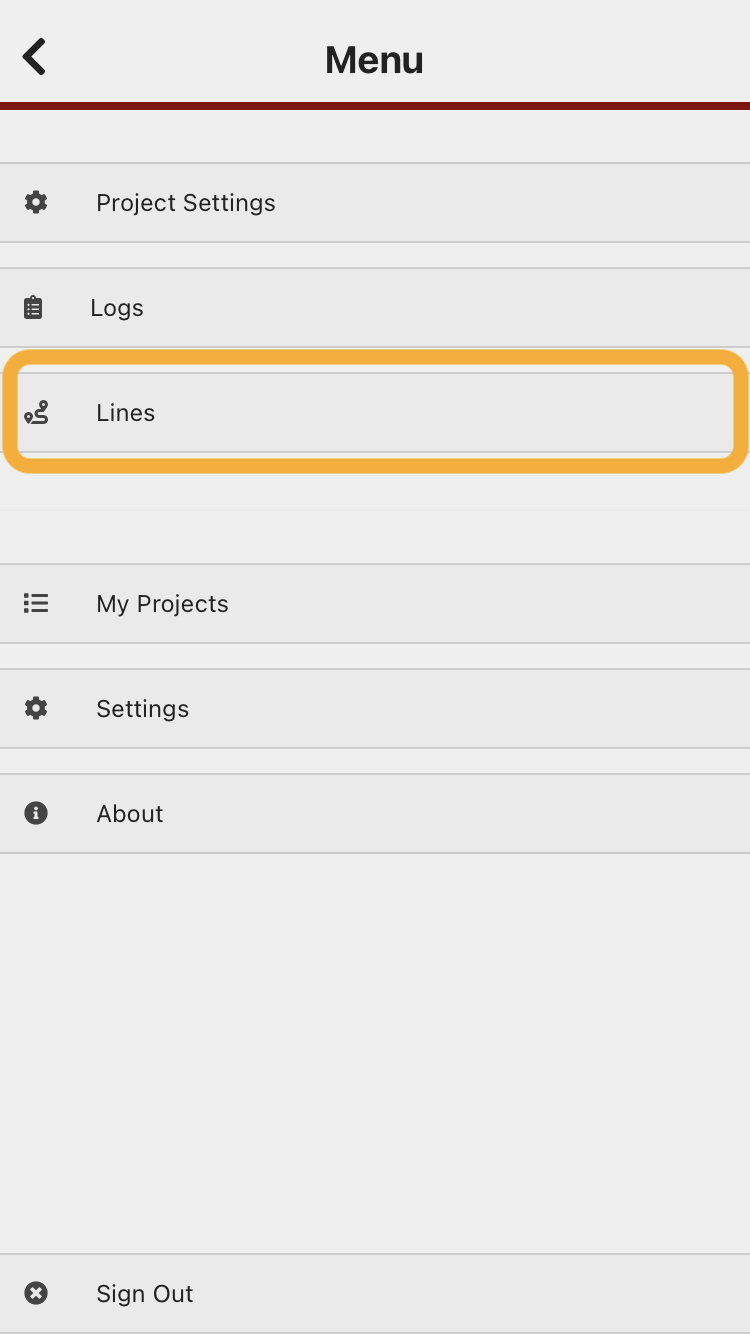
1. Select "Lines" from the app menu.
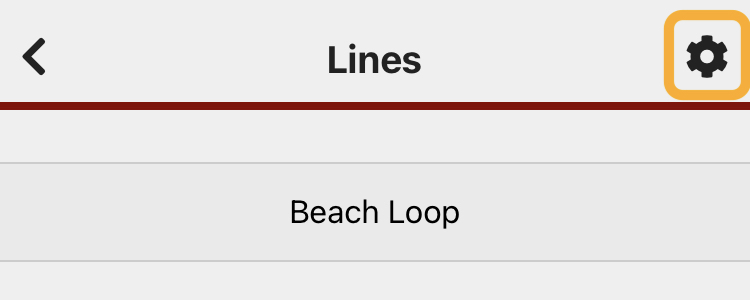
Before walking your first line - check your line settings. Select the cog symbol at the top right.
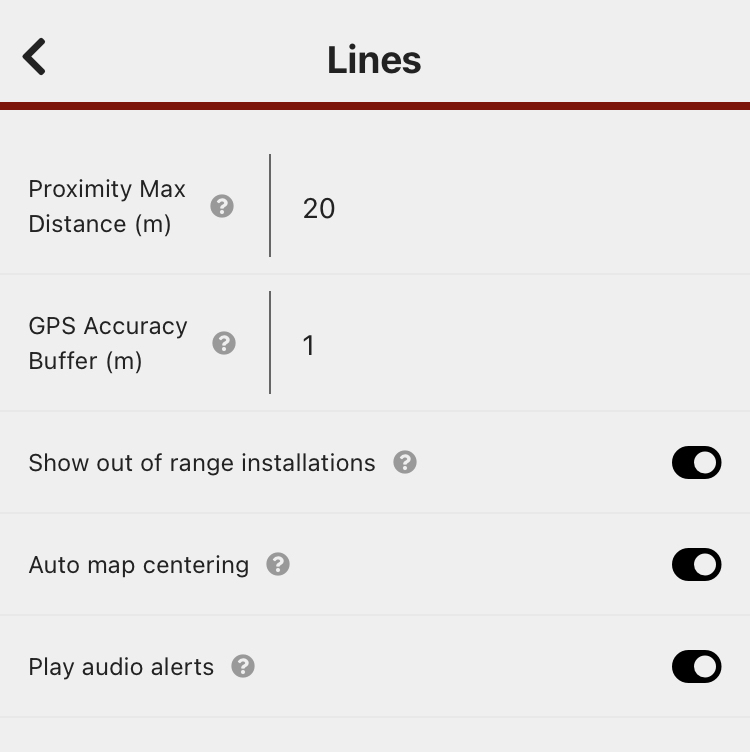
Set your preferences (tap on the ? symbol to see more detail about the preference setting). The preferences will remain set for subsequent line checks.
-
-
- Proximity Max Distance: the distance you are from the trap before it records a trap check. Because a phone's GPS can take a while to catch up to your location, we recommend setting this to at least 20m.
- GPS Accuracy Buffer: can generally be left as is.
- Show out of range installations: You will probably want to show out of range installations to begin with - this will show all the traps in the line with an indicator showing which traps have records added to them.
-
Hit the back arrow in the top left corner when you're done updating your Line Settings, to return to the Lines menu
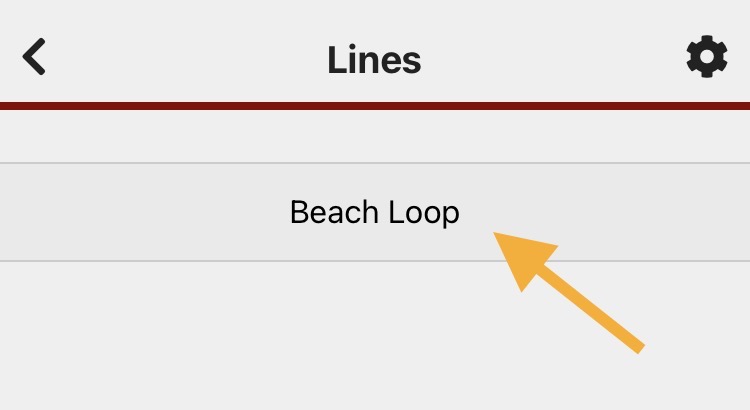
Select the line you are servicing.
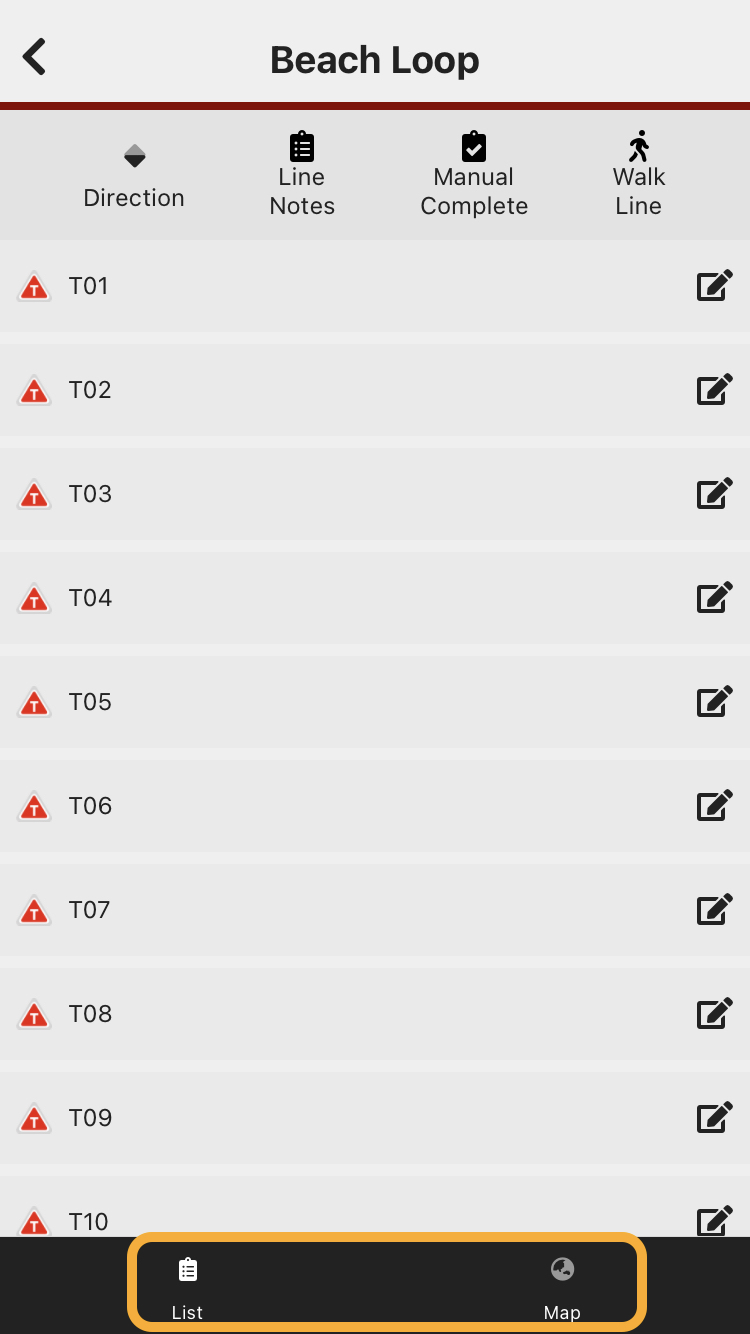
The traps on the line you selected will be listed (at the bottom of the screen, you can toggle between a list view and a map view of the line).
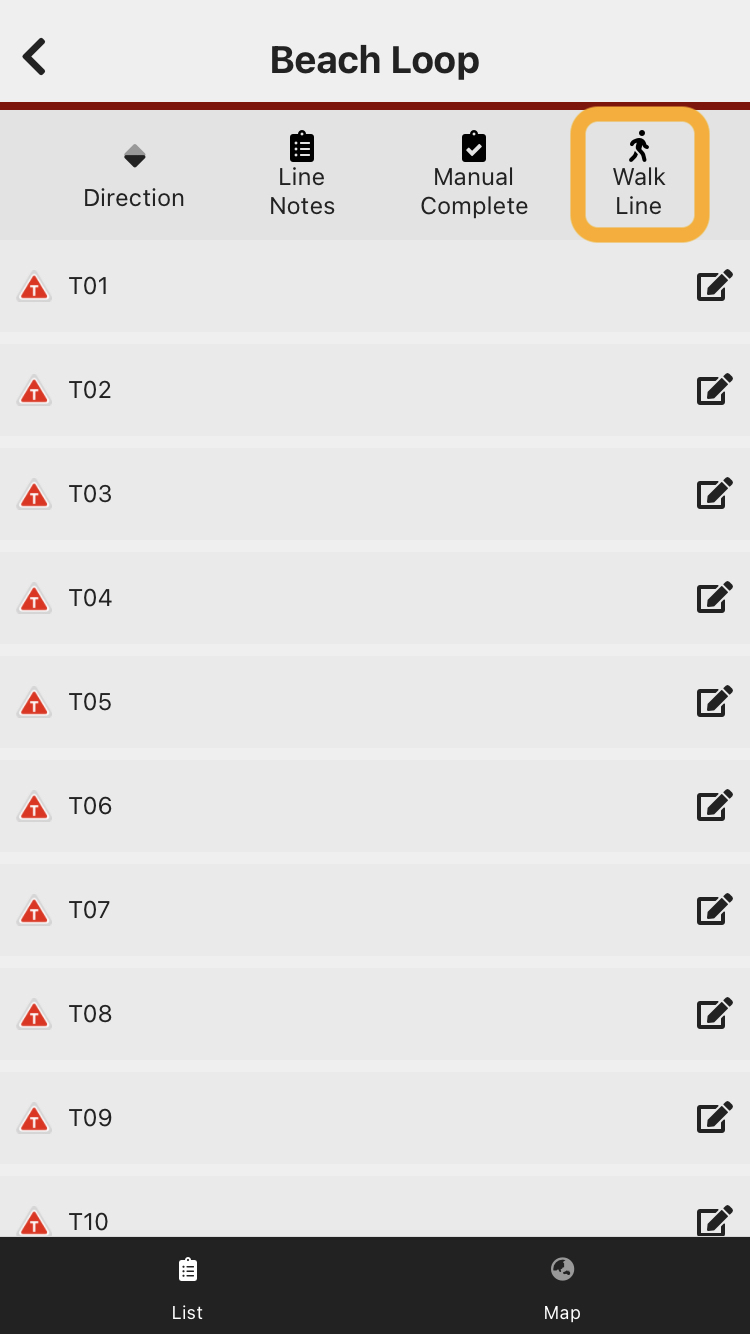
From the list view, click the "Walk Line" button (top right) to begin.
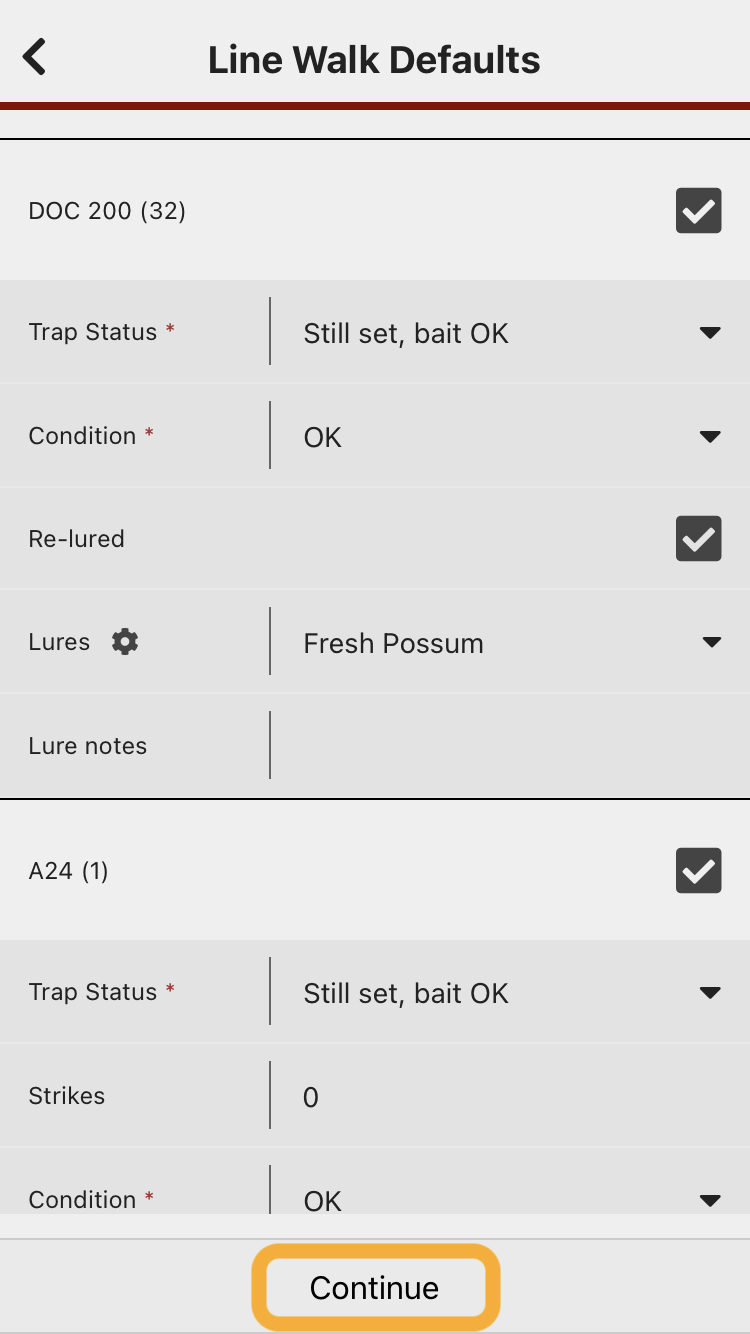
The different types of trap you have on this line will be displayed, so you can set defaults for each trap type.

Enter a default value for each of the trap types on the line, then press "Continue".
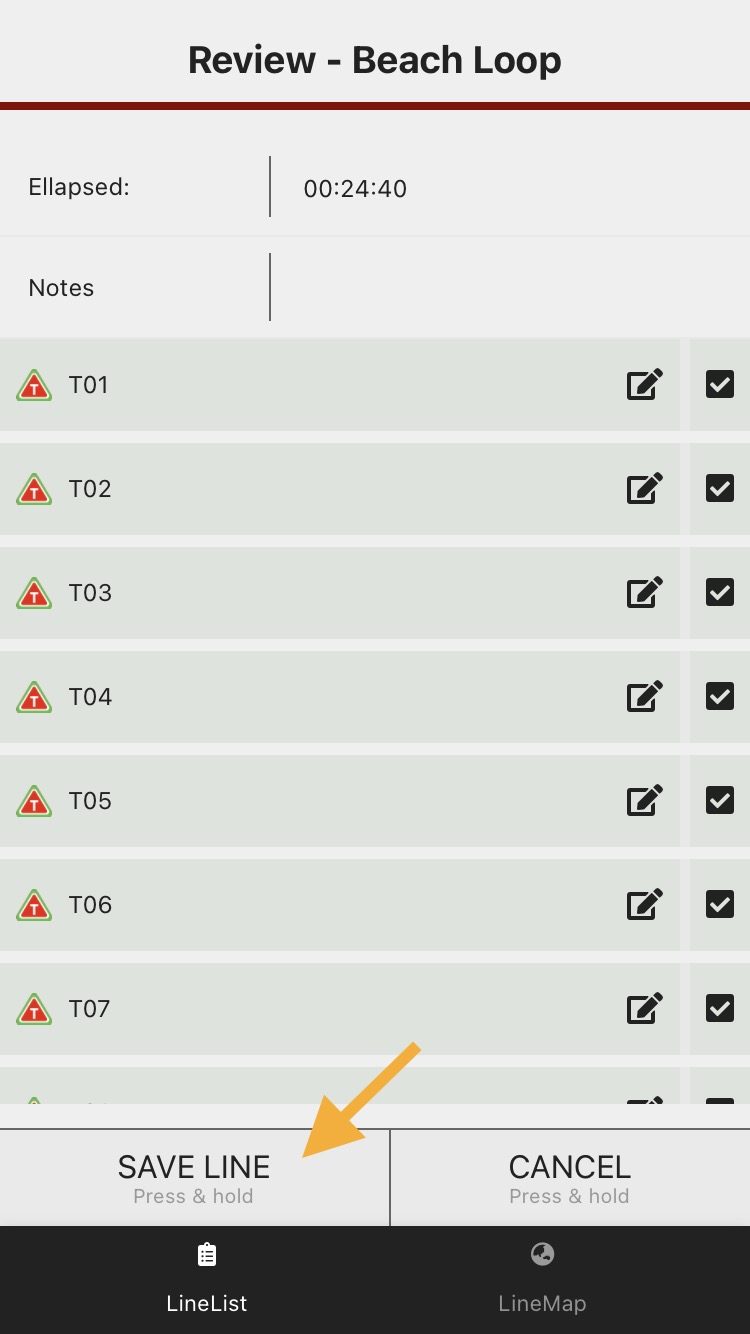
You will then be able to review and edit any records (if any need to be changed from the default), and deselect any records you don't want to save.
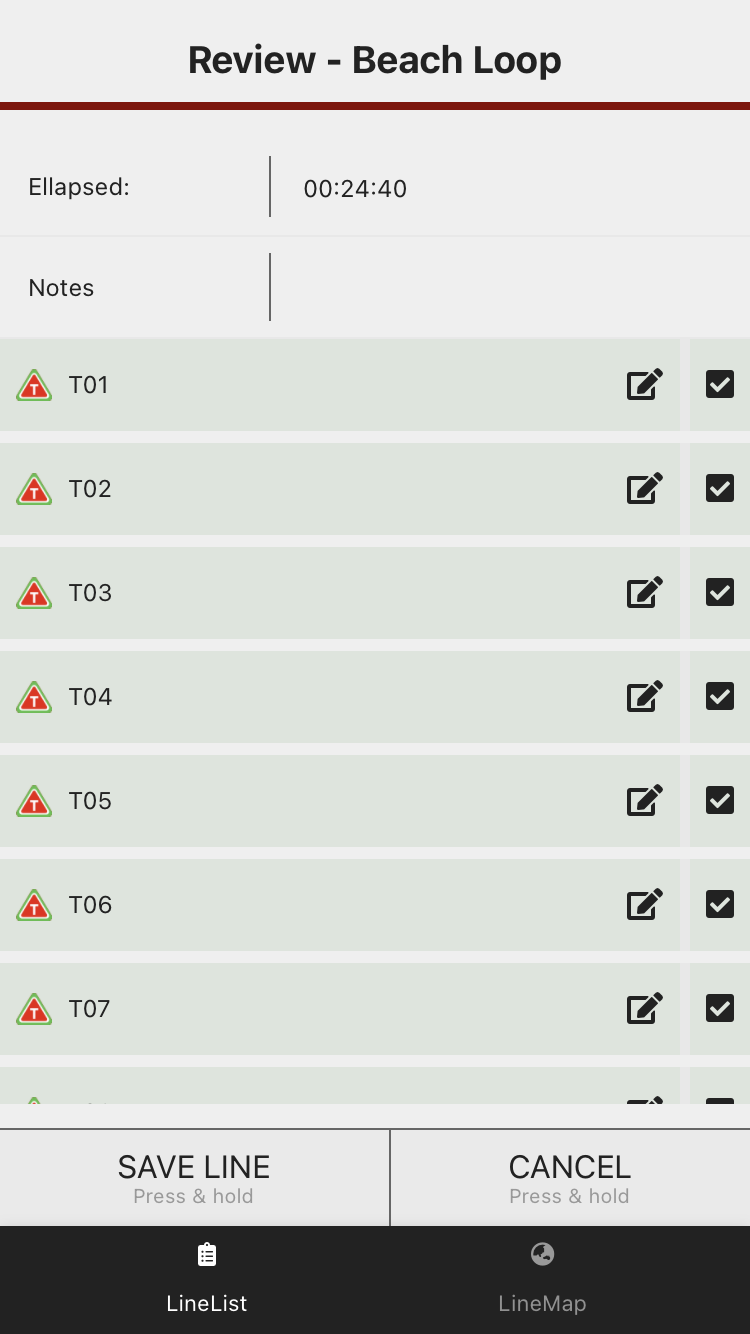
Press and hold the "SAVE LINE" button to submit the records.