App: Line servicing with Manual Completion
Lines can be completed either using the Walk Line Proximity feature (GPS track) or by using a Manual Completion.
How to use the app Line Manual Complete function
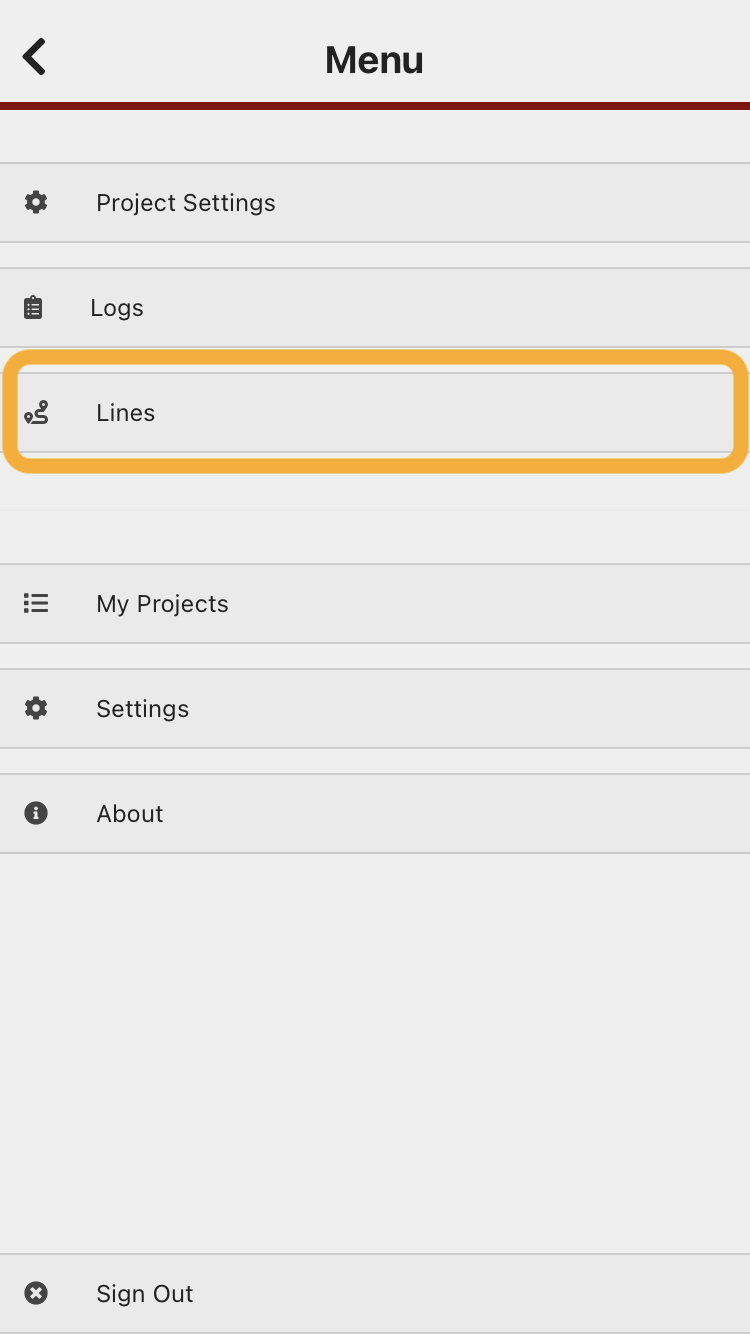
1. Select "Lines" from the app menu.
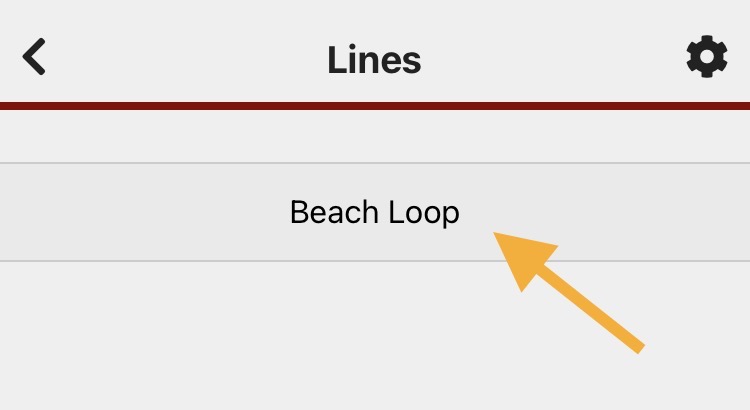
Select the line you are servicing.
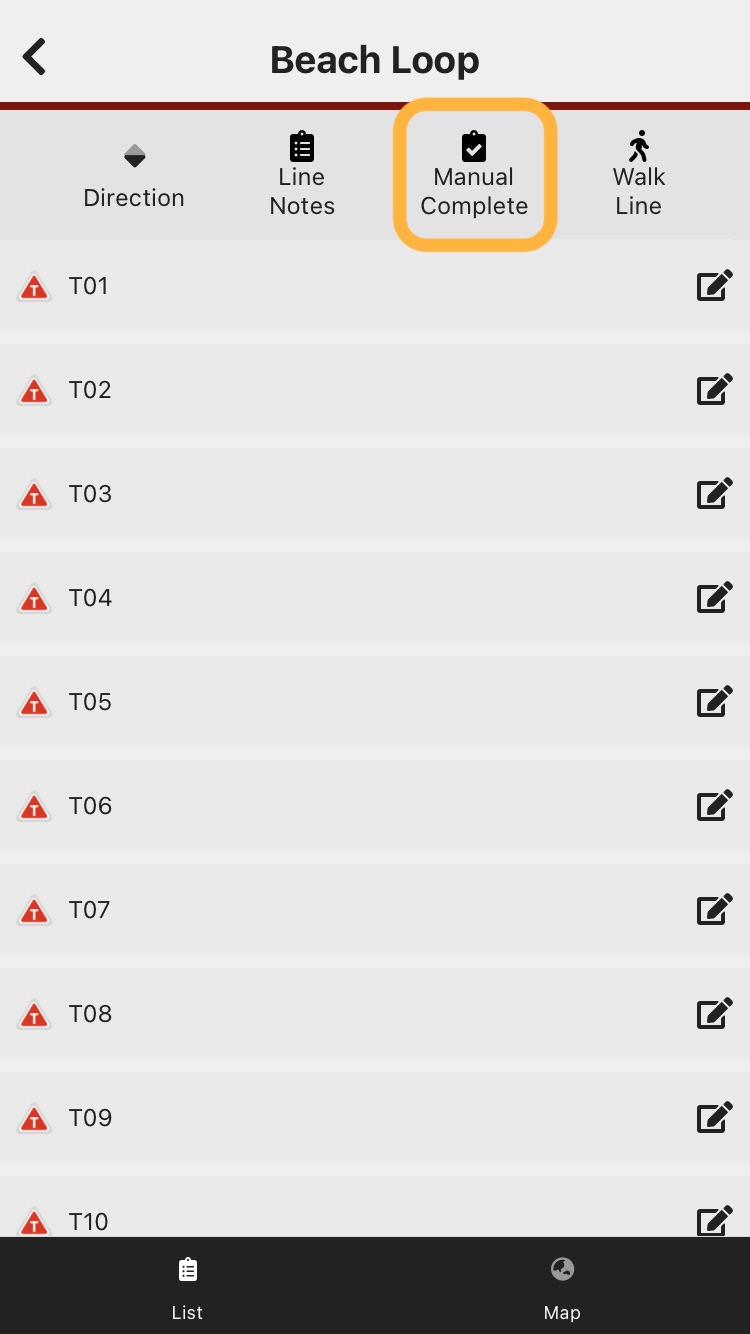
The traps on the line you selected will be listed (at the bottom of the screen, you can toggle between a list view and a map view of the line).
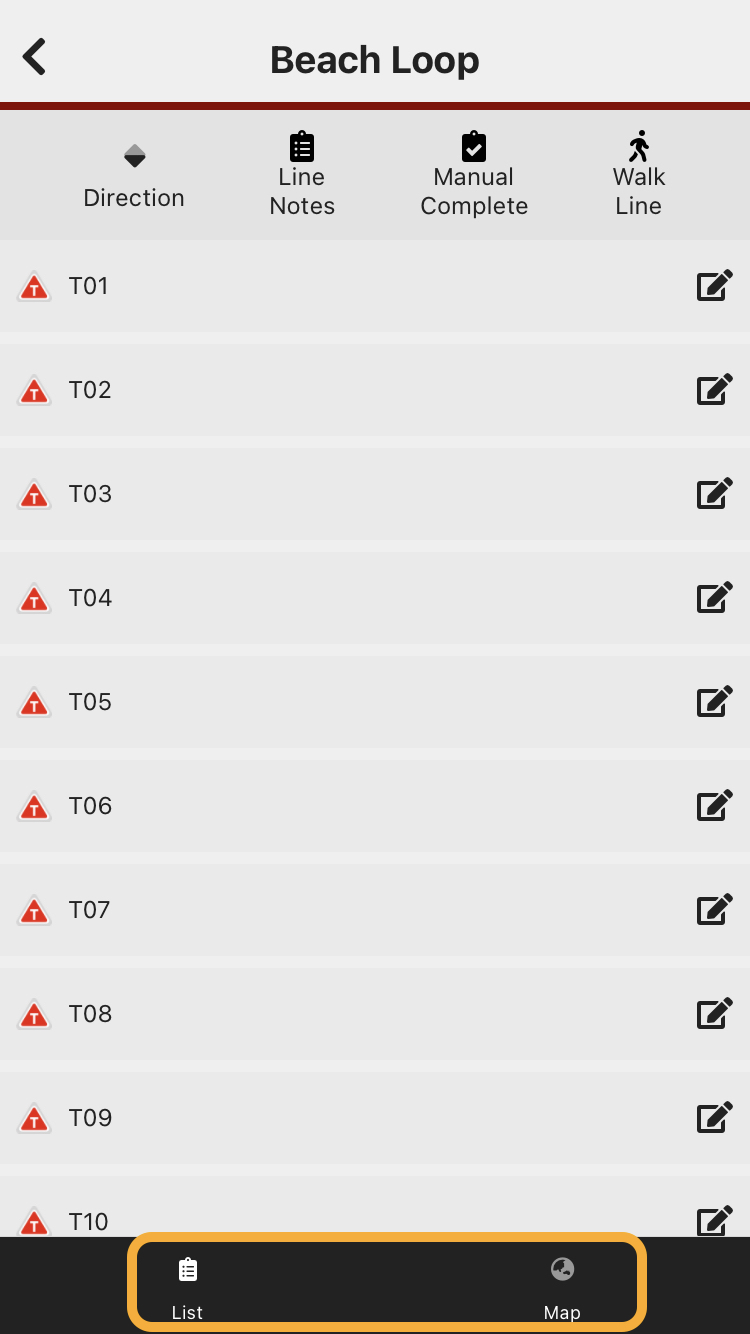
From the list view, click the "Manual Complete" button (top right) to begin.
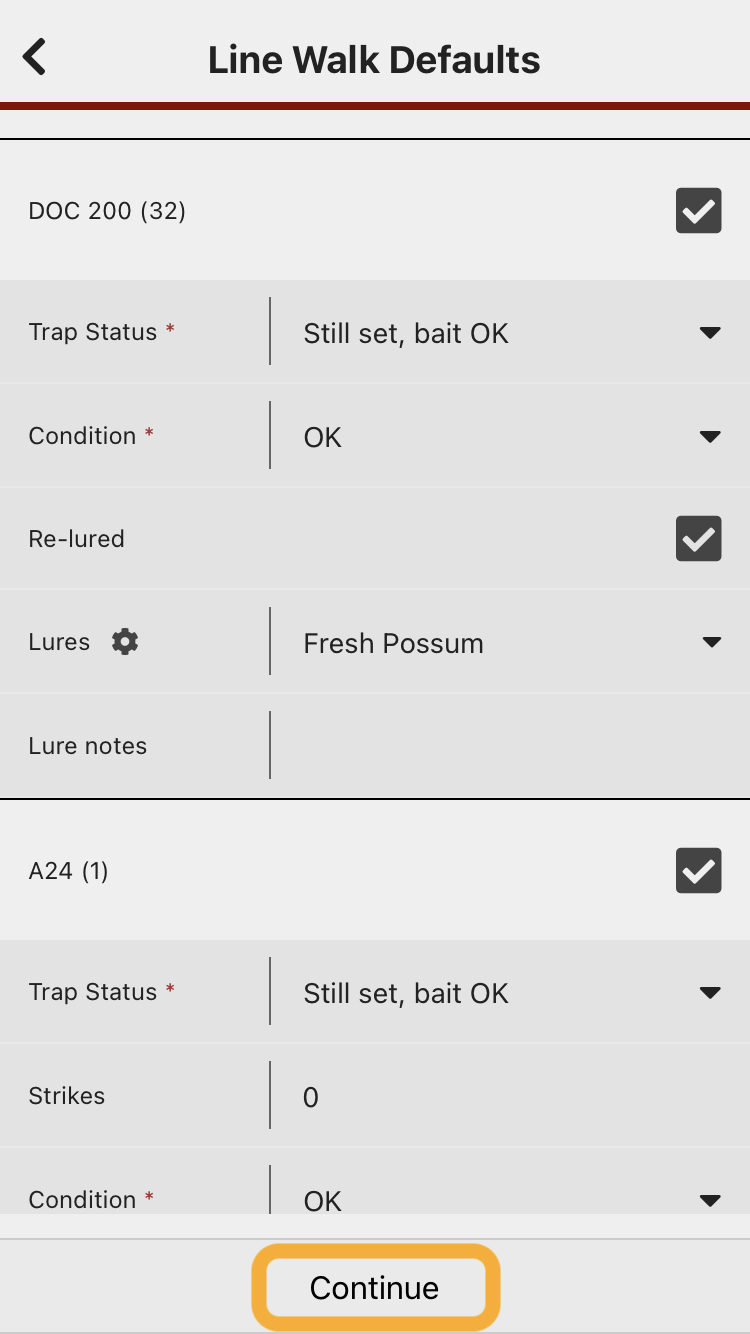
The different types of trap you have on this line will be displayed, so you can set defaults for each trap type.

Enter a default value for each of the trap types on the line, then press "Continue".
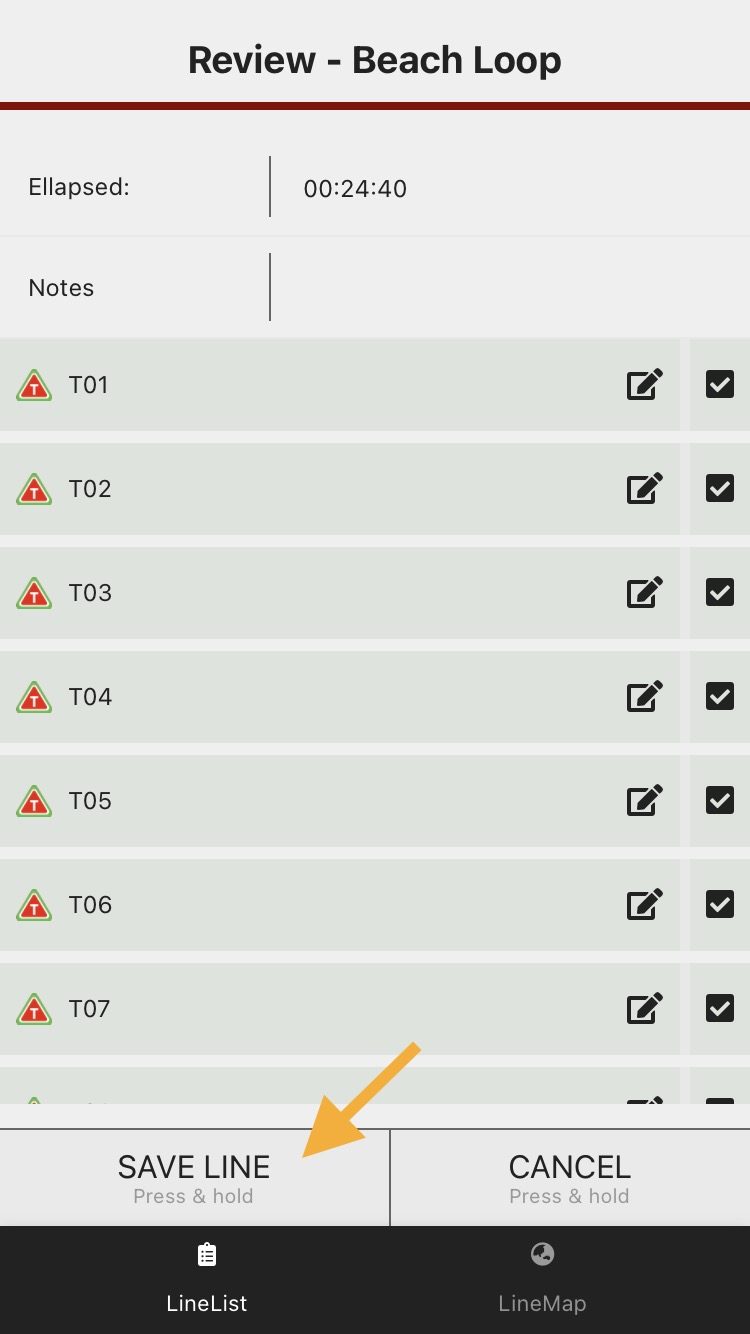
You will then be able to review and edit any records (if any need to be changed from the default), and deselect any records you don't want to save.
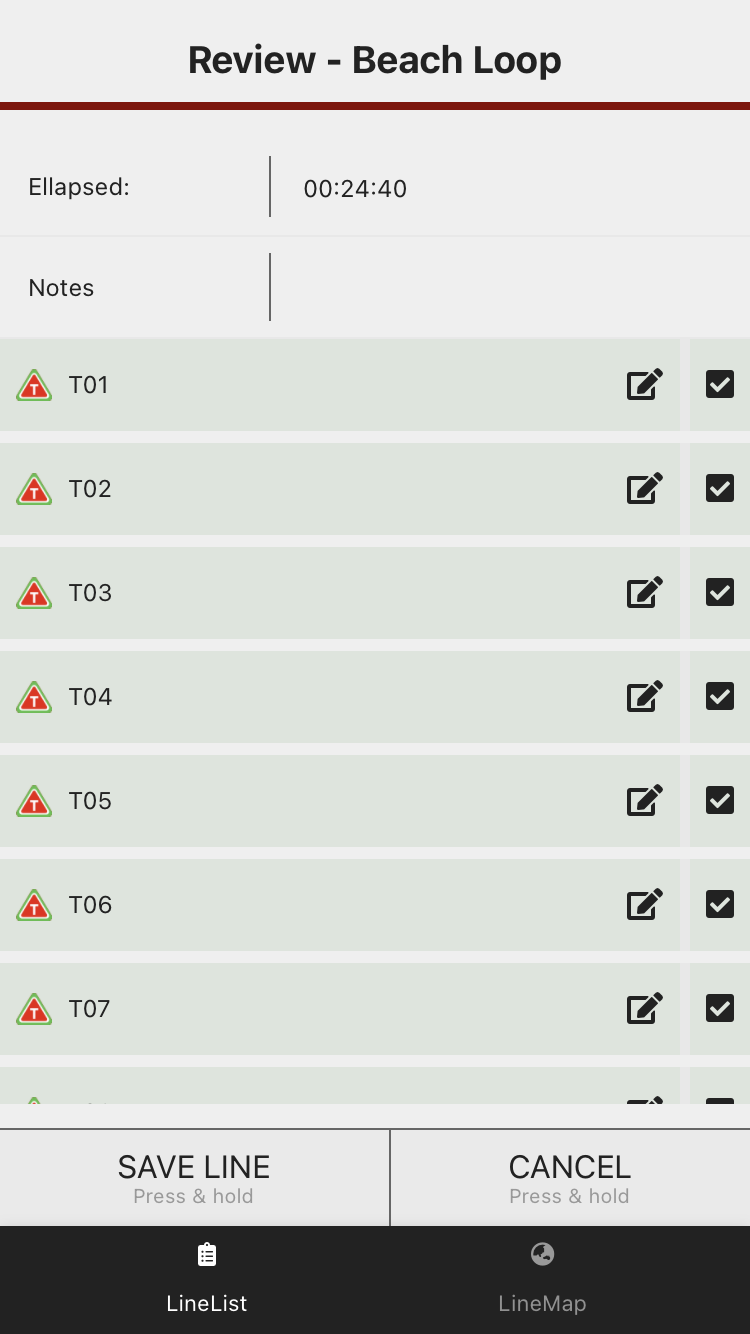
Press and hold the "SAVE LINE" button to submit the records.